Cookie manager
Browser cookie management guide
New in BleachBit 5.1.0
The Cookie Manager lets you select which cookies to keep when cleaning browsers. Instead of deleting the whole “cookie jar,” you can preserve cookies from sites where you want to stay logged in while still removing everything else.
Supported Browsers
The Cookie Manager works with the following browsers:
- Brave
- Chromium
- Firefox
- Google Chrome
- LibreWolf
- Microsoft Edge
- Opera
- Pale Moon
- SeaMonkey
- Waterfox
- Zen
Opening the Cookie Manager
There are two ways to open the Cookie Manager.
Method A: right-click context menu
- In the BleachBit left pane, expand a supported browser (for example, Google Chrome).
- Right-click on the Cookies option under that browser.
- Select Cookie Manager from the context menu.
Method B: Preferences dialog
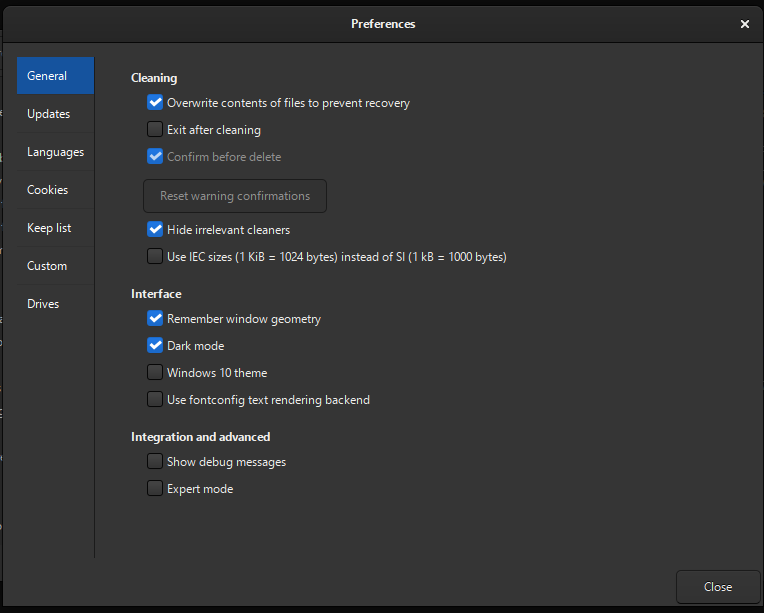
- Open Preferences from the application menu.
- Click Cookies in the left sidebar.
Using the Cookie Manager
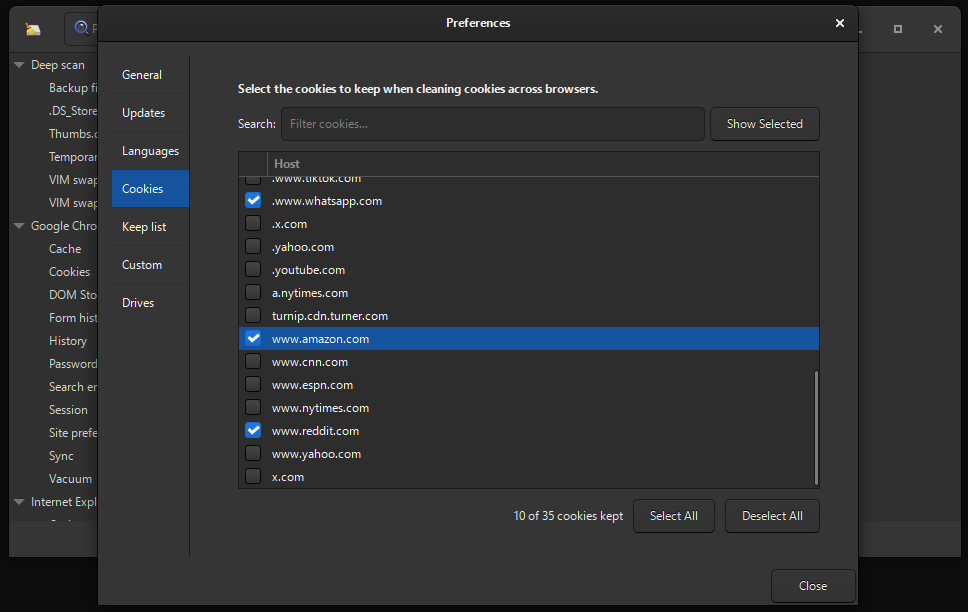
The Cookie Manager dialog shows the heading:
Select the cookies to keep when cleaning cookies across browsers.
The list displays one row per Host (cookie domain) gathered from all supported browsers that are installed.
Interface elements
| Element | Description |
|---|---|
| Search / Filter cookies… | Type to filter the host list by domain name |
| Show Selected | Toggles the list to show only currently checked hosts |
| Checkboxes | Check a host to keep its cookies; leave unchecked to delete |
| Select All | Checks every host in the list |
| Deselect All | Unchecks every host in the list |
| Cookie count (for example, 10 of 35 cookies kept) | Running tally of how many cookies are marked to keep |
| Close | Saves your selections and closes the dialog |
Step-by-step workflow
- Open the Cookie Manager using either method above.
- Wait for the cookie list to load. BleachBit scans the cookie files of all supported installed browsers.
- Browse or search the Host list to find sites whose cookies you want to preserve.
- Check the box next to each host you want to keep. The counter at the bottom updates as you make selections.
- Optionally use Show Selected to review only your chosen hosts.
- Click Close to save your selections.
- Click Preview on the main headerbar.
- Click Clean to actually delete the cookies.
Tips and Best Practices
- Close your browsers before cleaning. BleachBit needs exclusive access to browser cookie files. Cleaning while a browser is open may result in errors or incomplete deletion.
- Start with a Preview. Use Preview before Clean to see exactly which cookies will be deleted.
- Use the search box for large lists. If you have dozens of cookie hosts, typing a domain name into the filter box is faster than scrolling.
- Protect localStorage and IndexedDB with the Keep list. Until those file types are supported by the Cookie Manager, add their directories to Preferences → Keep list to prevent accidental deletion.
localStorage and IndexedDB
Only HTTP/HTTPS cookies are supported. LocalStorage and IndexedDB files, which function similarly to cookies, are not yet managed by the Cookie Manager. Support for those is planned for a future release.
Until then, to prevent BleachBit from deleting localStorage or IndexedDB data, add their directories to the Keep list in Preferences. Example path:
[...]/google-chrome/Default/IndexedDB/https_example.com_0.indexeddb.leveldb/
Relationship to the Keep List
The Cookie Manager and the Keep list serve related but distinct purposes.
The Cookie Manager works at the hostname level, letting you select specific HTTP/HTTPS cookie hosts to preserve across any supported browser.
The Keep list (found under Preferences → Keep list) protects entire file paths and directories from deletion. It is the appropriate tool for protecting localStorage, IndexedDB files, and any other files outside the scope of the Cookie Manager.
Both can be used together for comprehensive control over what BleachBit deletes.
Troubleshooting
- Cookie Manager is not in the context menu
-
Check the following:
- Verify you are using BleachBit version 5.1.0 or later.
- Verify the browser is supported.
- After cleaning, I am logged out of a site
- Cause: The site’s cookie host was not checked in the Cookie Manager, or it appears under a variation of the hostname (for example,
www.example.comvs.example.comor.example.com).
Solution: Re-open the Cookie Manager, search for variations of the site’s domain, check all matching hosts, then clean again.
- A kept cookie was deleted anyway
-
Cause: The cookie may be stored in localStorage or IndexedDB, not as an HTTP cookie.
Solution: Add that directory to the Keep list in Preferences.
Frequently Asked Questions
How do cookies show in BleachBit’s preview and cleaning log?
Instead of showing “Delete” in the log, you will see “Clean cookies” followed by the filename containing cookies. There will be one entry for each supported browser. The log will not list individual cookies.
Does Cookie Manager separate cookies by browser?
Cookies from all web browsers are shown together.
What is a cookie?
A browser cookie is a small file a website saves to your browser to remember information about you. For example, a cookie might store your login session, language preference, or shopping cart contents.
Why would I want to delete cookies?
Deleting cookies reduces traces of your browsing activity, removes tracking data collected by advertisers, and clears stale session data from sites you no longer use.
Why would I want to keep a cookie?
Deleting a cookie from a site usually signs you out and resets your preferences there.
Which browser cookies should I keep?
You may want to keep cookies for sites that you trust, regularly visit, and want to stay logged in.
Examples:
- Email provider
- Banking website
- Social media site or discussion form
What types of browser cookies are there?
Cookies are often categorized by duration or lifetime. Session cookies are deleted when the browser closes, while persistent cookies remain until their expiration date.
Cookies can also be categorized by their purposes. Common purposes include: login information, analytics, advertising, and preferences.
When you log in to a website and enable the option “Remember me”, the website may store it in a persistent cookie to keep you logged in, even after closing the browser. Otherwise, the login information may be stored in a session cookie.
How much identification is stored in a browser cookie?
A cookie does not store identification information directly. For example, it does not directly store your name, email address, IP address, or other personal information. Instead, it stores a randomly-generated, unique identifier that the website uses to recognize the user, so in practice, it can be used to look up personal information.
The types of information associated with a cookie vary, but typically include session identifiers, user preferences, advertising or analytical tracking, and account information.
When you log into your bank, the cookie connects to your bank account information. When you log into your doctor’s portal, then the cookie connects to health information. However, each system maintains its own separate cookie store.
Advertising cookies are used to track your browsing habits and deliver targeted ads. They contain information about the sites you visit, which ads you click, and other tracking data. These work across websites, but only on those that participate in the same advertising network. Many website publishers participate in multiple advertising networks. Advertisers form profiles that are a combination of observed behaviors, like visiting a particular webpage, and general inferences, like an interest in topics or product categories or inferred demographics.
Over time, advertisers can build detailed profiles that contain more information than some people are comfortable with, so people may delete these cookies, which makes the browser appear to advertisers like a new device.
What is a supercookie?
A supercookie, also called an evercookie or zombie cookie, stores an identifier across multiple different parts of the web browser, including those not normally deleted by cleaning, so when the normal cookie jar is cleared, the system can reconstruct the identification from other sources, so BleachBit offers many cleaning options for different places data can be stored.
What are localStorage and IndexedDB?
localStorage and IndexedDB are ways that websites can save information in your browser, similar to cookies. All three help websites remember things about you between visits.
What they have in common:
- They store data on your computer, not on the website’s server
- The data stays even after you close your browser
- Websites can use them to keep you logged in or remember your preferences
How they differ:
Cookies localStorage IndexedDB How much can be stored Very little More Much more Sent to website automatically Yes No No Common uses Logins, tracking Saving settings Storing files for offline use In BleachBit version 5.1.2 and later, use the Site data category to clear localStorage and IndexedDB data. The selections in the Cookie Manager do not apply to them.
Can I be tracked without cookies?
Yes. Websites can use other techniques such as browser fingerprinting, localStorage, IndexedDB, ETags, and tracking pixels. Deleting browser cookies is one of multiple ways to reduce tracking but does not eliminate it entirely.