Expert mode
Safety guardrails and advanced features
New in BleachBit 5.1.0
BleachBit is a powerful cleaning tool that serves both novice and experienced users. Expert mode unlocks advanced cleaning options and bypasses safety confirmations, giving power users the direct control they prefer while keeping protective guardrails (safety checks) in place by default for those who want guided, worry-free cleaning.
When to enable expert mode
Enable expert mode if you:
- Are familiar with which cleaning options are safe for your system
- Understand the consequences of each cleaning operation
- Want direct control over confirmation dialogs and deletion behavior
- Need to access advanced cleaning features
Do not enable expert mode if you are unsure about the impact of specific cleaning options.
Enabling expert mode
To enable expert mode:
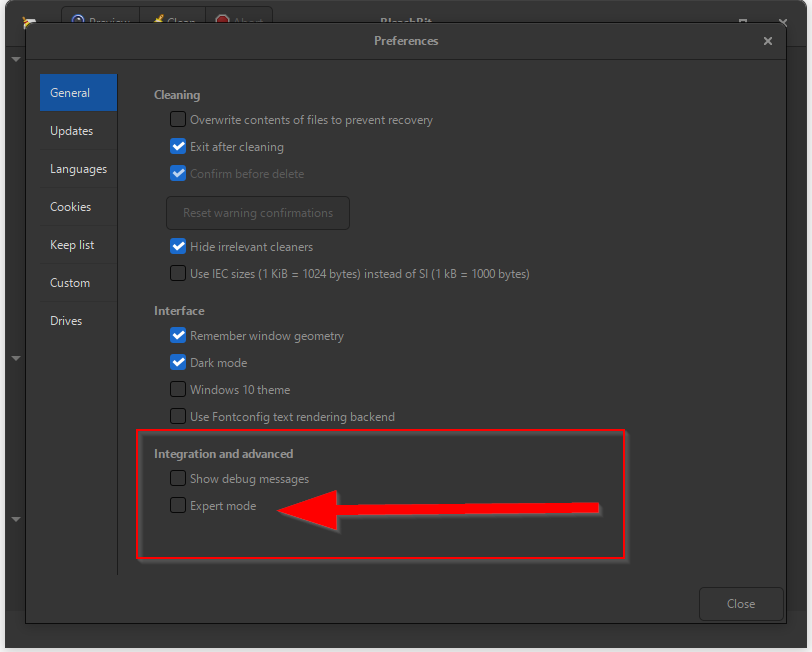
- On Linux, click the hamburger menu (three horizontal lines in the top-left corner). On Windows, click the application icon (logo) in the top-right corner.
- Select Preferences.
- Select the General tab.
- Check the Expert mode option.
- Review the warning message and confirm your selection.
BleachBit displays a confirmation dialog stating: “Expert mode enables advanced features and relaxes guardrails. Use extra caution in expert mode.”
What changes with expert mode
Access to protected cleaning options
When expert mode is disabled, BleachBit automatically filters out certain high-risk cleaning operations during the actual cleaning process, even if you have selected them in the preview. When expert mode is enabled, all of these options can be cleaned without restriction. See Protected options explained for the full list and details.
Delete confirmation control
The Confirm before delete setting behaves differently depending on expert mode:
| Setting | Expert mode disabled | Expert mode enabled |
|---|---|---|
| Confirm before delete checkbox | Locked (always enabled) | Editable |
| Delete confirmation dialog | Always appears before cleaning | Appears based on your preference setting |
This gives experienced users the flexibility to clean without repeated confirmation prompts if they choose.
Warning dialogs
With expert mode disabled: When you select a protected option, an infobar appears with the message: “This option is protected. To bypass protection, enable expert mode.” The option will be skipped during actual cleaning.
With expert mode enabled: Protected options show a confirmation dialog with the specific warning for that option. You can choose to remember your selection for future cleanings, reducing repeated prompts.
Preferences access
Two additional preference settings become available only when expert mode is enabled:
- Confirm before delete: Toggle automatic delete confirmation dialogs on or off
- Reset warning confirmations: Clear any saved preferences for previously confirmed protected options
Right-click context menu cleaning
When you right-click on a file or folder to clean a single option that has a warning, and expert mode is disabled, an infobar appears: “This option requires expert mode. Enable it in Preferences.”
With expert mode enabled, you can clean protected options directly from the context menu with appropriate warnings.
Protected options explained
Passwords
BleachBit can delete saved passwords from all major web browsers. Enabling this without expert mode is prevented because losing browser passwords could lock you out of important accounts. Only enable this if you maintain passwords elsewhere or are certain you will not need them.
If browser sync is enabled and passwords were synced before deletion, passwords may be restored after the next sync.
System empty space wiping
This operation overwrites unused portions of your disk to prevent recovery of deleted files. Keep in mind:
- It can be slow, potentially taking hours.
- Effectiveness depends on storage type, encryption, and other factors.
- It can increase wear on SSDs.
See Shred files and wipe disks for more information.
Windows File Explorer options
- Shellbags: Controls which folders are expanded or collapsed and icon positions in Windows File Explorer. Cleaning this resets the position of desktop icons.
- Recent documents list: Deletes the list of recently used documents. This option will reset pinned locations in Quick Access to their defaults.
- Thumbnails: Deletes cached preview images, which may require Windows Explorer to restart.
Deep scan
Deep scan searches your entire system for temporary and backup files. It can be slow and may find files you want to keep, so review results carefully before cleaning.
Application-specific options
Cleaning Thunderbird indices will reset the configuration of columns in the message list.
Cleaning Transmission blocklists will disable blocklists until they are restored.
DNF autoremove may remove packages you wish to keep.
For other applications, read their respective warnings.
Best practices
- Review before cleaning: Always use the preview function to see exactly what will be deleted before proceeding with actual cleaning.
- Back up first: If you are unsure about what a cleaning operation will affect, back up important data first or disable cleaning of that option.
- Test one option at a time: When using expert mode for the first time, enable and test individual protected options to understand their effects.
- Keep expert mode enabled selectively: Consider enabling expert mode only when you need to use advanced options, then disabling it afterward for added protection during routine cleaning.
Troubleshooting
“This option is protected” message appears
Expert mode is not enabled. Select Edit > Preferences, select the General tab, and check Expert mode. Remember to review the warning message carefully.
I accidentally disabled a warning confirmation
Click the Reset warning confirmations button (available in Preferences when expert mode is enabled) to clear all saved preferences and return to being prompted for each protected option.